Google has moved the PC one step closer to becoming a smartphone-like digital assistant with the addition of the personalised data card service Google Now to Chrome browsers. Google Now was previously only available as part of the Android and iOS Google Search Apps.
Google Now was a “predictive search” engine that remembers calendar appointments, weather updates for the home and work area via GPS, customised sports scores and transport previews to and from work and home addresses.
Google Now could also answer natural-language spoken questions such as “Where is the nearest pub?” and a map and directions to nearby pubs appeared, much like Apple’s Siri.
Features to be rolled out over the next few weeks included the option to configure Gmail, Google Drive and Hangouts alerts.
This useful tip will enable you to search your bookmarks and history easily from Chrome address bar itself.
By default when you start typing in the Chrome address bar, it does show your bookmarks as suggestions indicated by entries with a . However, it only lists the top two or three bookmarks. Sometimes you need to dig deeper and perform a search in your Bookmarks Manager. Recently, I stumbled upon something really useful. You can easily configure your Chrome to search for your bookmarks directly from omnibox or address bar. In-fact, there is an extension which does that for you. Head over to the Chrome Web Store and install Bookmark Search. This extension basically performs steps mentioned below automatically and adds a new search engine entry for you.
If you browse using Google Chrome (and if not, why not?) you can use the browser to search your Google Drive files just as you would use any other search engine.
To get started, right click on the Omnibar (Chrome address bar) and choose Edit Search Engine… from the menu. This opens a settings page for search engines used by Chrome.
Welcome to perceptual computing. Google recently added hands-free voice search to the beta build of the Chrome browser, a new feature that allows you to simply say "Ok Google" and then dictate your search terms to their browser (assuming your PC has a microphone, of course).
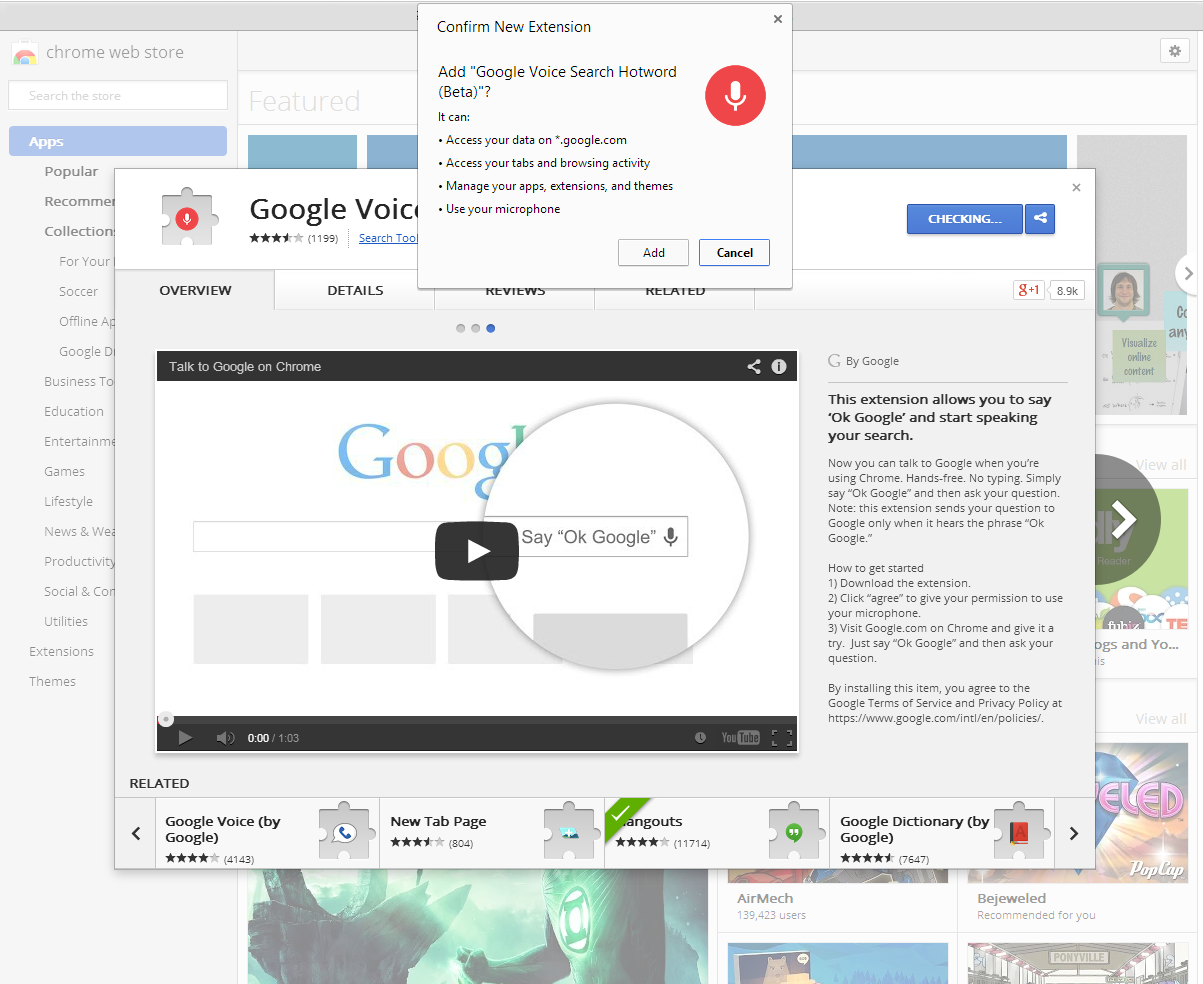
It's a handy feature, but Google has yet to say when it will be baked in to the official Chrome build. The good news for anyone who wants to talk to their computer right now is that you can manually add hands-free voice search using the Google Voice Search Hotword (Beta) extension.
Yes, it's also a beta test, but adding an extension to your current browser is a lot simpler than switching over to a less stable version of Chrome, don't you think?
To get hands-free voice search in Chrome right now, visit the Chrome Web Store toinstall Google's extension. Tap the blue button in the upper right corner labeled + Free. A pop-up window will appea,r asking you to authorize installing the extension by clickingAdd.
Next, you should see a webpage with settings for the hotword search extension. There isn't a whole lot to worry about, but if you spend a lot of time using your laptop on battery power then you should probably check the box that says "Stop listening for 'Ok Google' hotword detection after 5 minutes." This setting will save your battery from getting hammered when you're sitting on a Google search page.

 ks that make it easier to search for content and navigate websites.

 . However, it only lists the top two or three bookmarks. Sometimes you need to dig deeper and perform a search in your Bookmarks Manager. Recently, I stumbled upon something really useful. You can easily configure your Chrome to search for your bookmarks directly from omnibox or address bar. In-fact, there is an extension which does that for you. Head over to the Chrome Web Store and install